Edit
Upscale 4K
Make a finished render 4K, about twice the width and height of the 2K render, for print and boards. 2 credits.
Step by step
Pick a render
Pick a finished render, then choose Upscale 4K under Render settings.
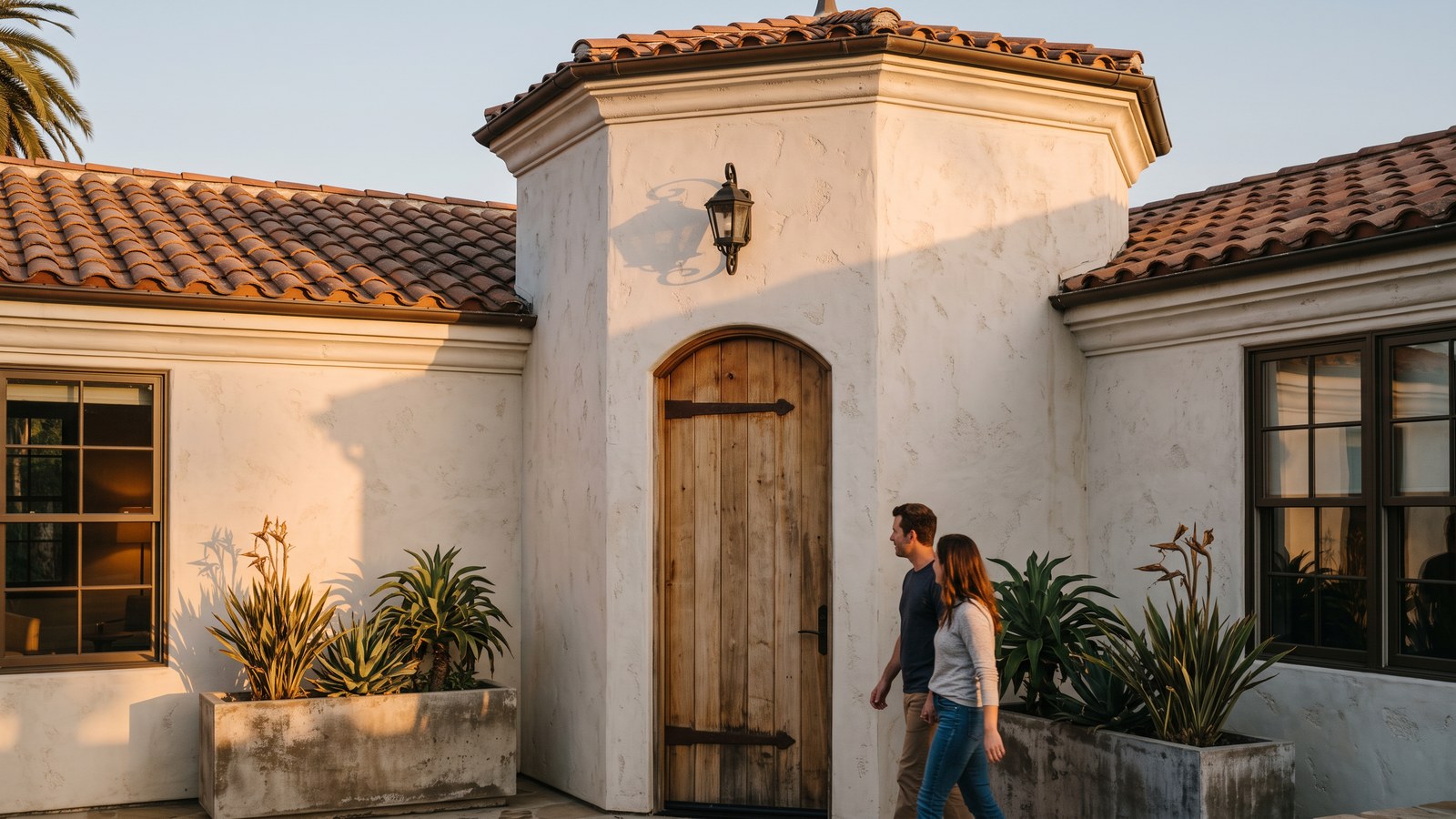
Renders come out at 2K: 2752 × 1536 for a wide 16:9 view. Press Upscale, then download
The 4K render shows up first in the strip. Pick it and press Download.
 2K, enlarged4K

The same crop of the render above, at 2K and after Upscale 4K.
Good to know
- A wide 2752 × 1536 render comes back at 5504 × 3072.
- Upscale is meant to add detail, not change the picture. Look over the 4K render before you send it.
- A render that’s already 4K can’t be upscaled again.
- It works on your renders, and on any image you upload from the Upscale 4K card.
- Upscale last. A change to the whole picture made after it comes back at 2K.
- The render you started from stays in the strip.
Still need help? Email info@renderboard.app.